AI editing tools
AI object removerPaint over it, and it's gone
Hangers, tags, clutter in the background: paint over them with your finger or mouse, tap Erase, and AI fills the spot in from its surroundings. Missed a bit? Paint over it again.
Free accounts can use it. No card needed.
An orange T-shirt on a hanger: on the left half the original, a hand holding the hanger with the area to erase painted over the arm; on the right half after erasing, the hand is gone.
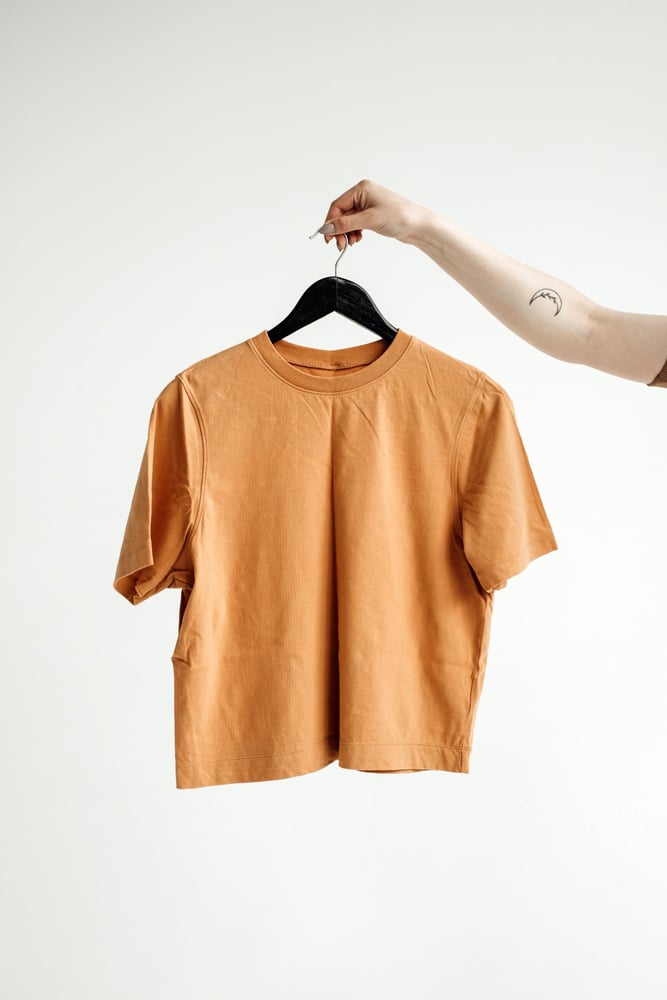
Illustration
Three steps to erase what's extra
From picking a photo to saving it, all in one editor.
Pick a photo
Upload a new one, or choose from My pictures or your try-ons.
Paint over what to erase
Change the brush size; clear the paint and start again if you slip.
Tap Erase
AI fills in what you painted. Not happy? Undo it, or paint again.
If it bothers you, paint it out
Something extra in the shot? No need to reshoot.
Remove hangers and tags
Erase hangers, tags and clips from an item photo and it looks like a product shot.
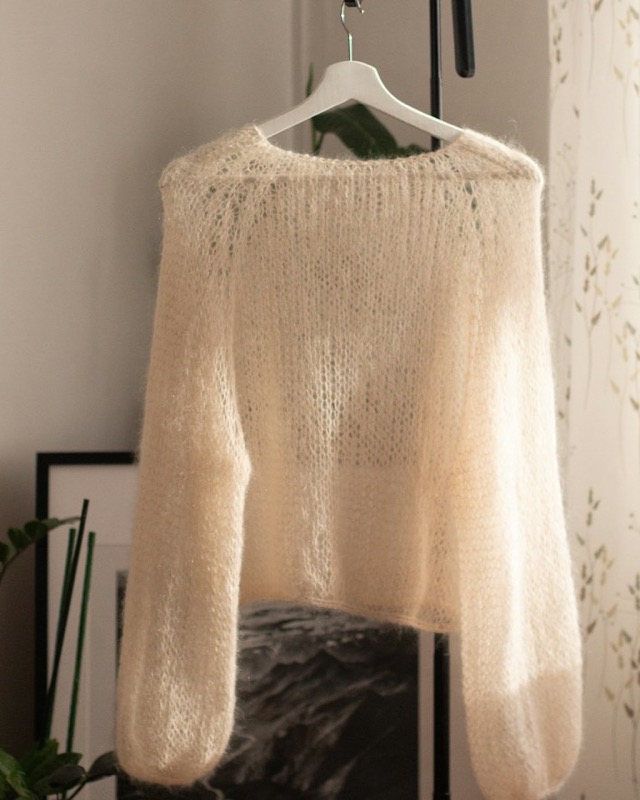
Clear the clutter behind you
Bins, cables and clutter in the background of a photo: paint them out.
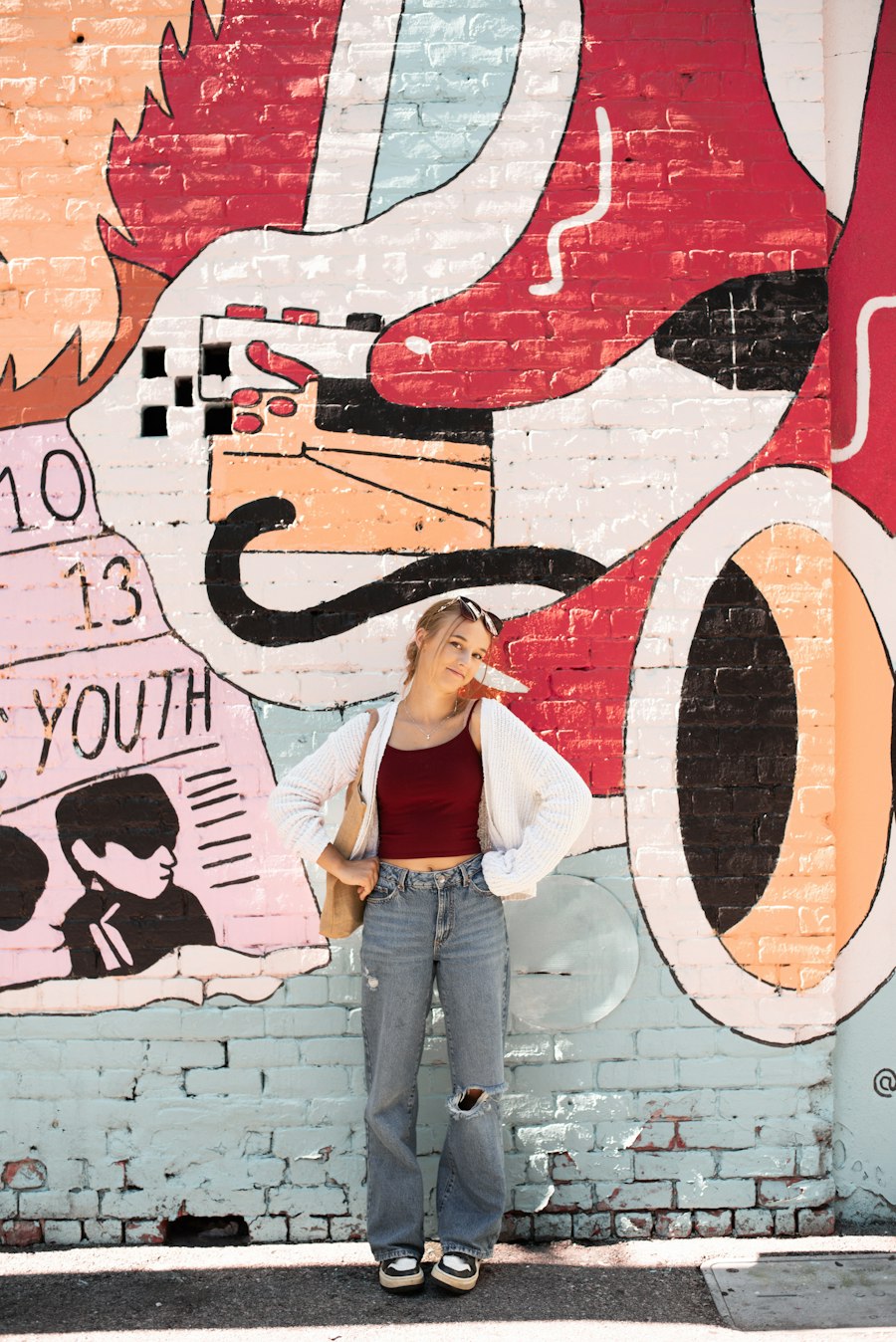
Fix extras in a try-on result
If AI drew something extra in a try-on, paint it out and it's clean.
More AI editing tools
The tools in the editor work together: edit, then save it as one picture or export a JPG or PNG.
- AI background removerSwap the background for clean white in one tap
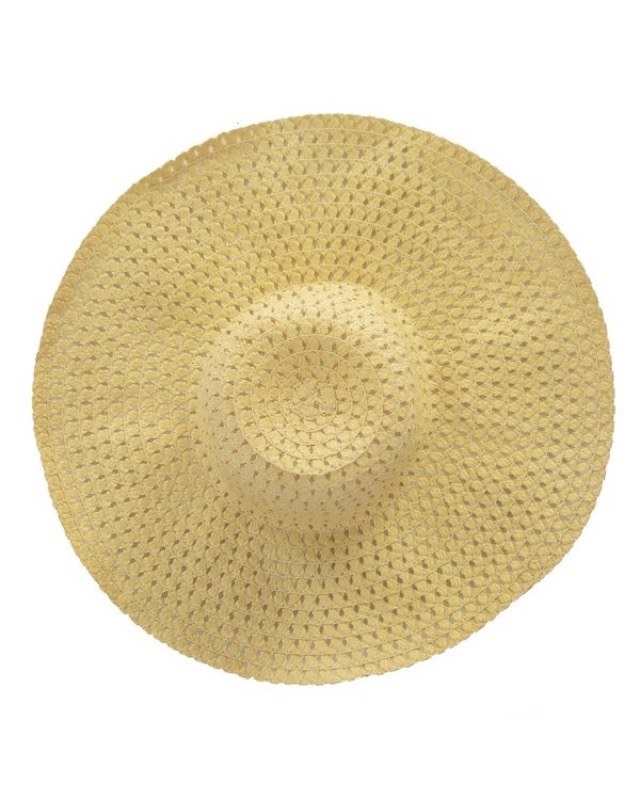
- AI sticker makerDescribe it, and get a sticker of your own

Basic tools take no AI quota
- Crop
- Rotate
- Adjust
- Looks
AI object remover: questions
Does the AI object remover cost anything?
Free accounts can use it. Each tap of Erase takes some of your monthly AI quota; a run that fails takes none.
Can you tell where something was erased?
AI fills in from the surroundings, so the plainer the background, the more natural it looks. With busy patterns or large areas it may show; erase in a few smaller passes.
Can I erase things on a person?
On a photo of you, paint only the background, not your body. Erasing things on you would make the try-on look unlike you.
What if I erase the wrong thing?
Tap Undo erase to go back. The change only applies to the picture once you tap Save.
Are my photos used to train AI?
No. Your photo is sent to Google's AI service to erase, but it is not used to train models and nobody else sees it.
To see how AI handles your photos, read How it works and our Privacy Policy.
Whatever's extra, let AI erase it
Paint, tap, and skip the reshoot.
Try the AI object remover free- Free accounts can use it
- A failed run takes no quota
- Your photos are never used to train AI